Using the update webpage
To access the webpage, follow the instructions of the menu.
Wi-Fi
Here you can configure the details of the Wi-Fi network that will be used for automatic updates in the menu.

- - the SSID of the Wi-Fi network
- - the password of the Wi-Fi network
- - save the Wi-Fi network details
Write the name and password in their respective fields, and press Set.
A message will appear on the page, indicating whether or not the operation was successful.
Configuration
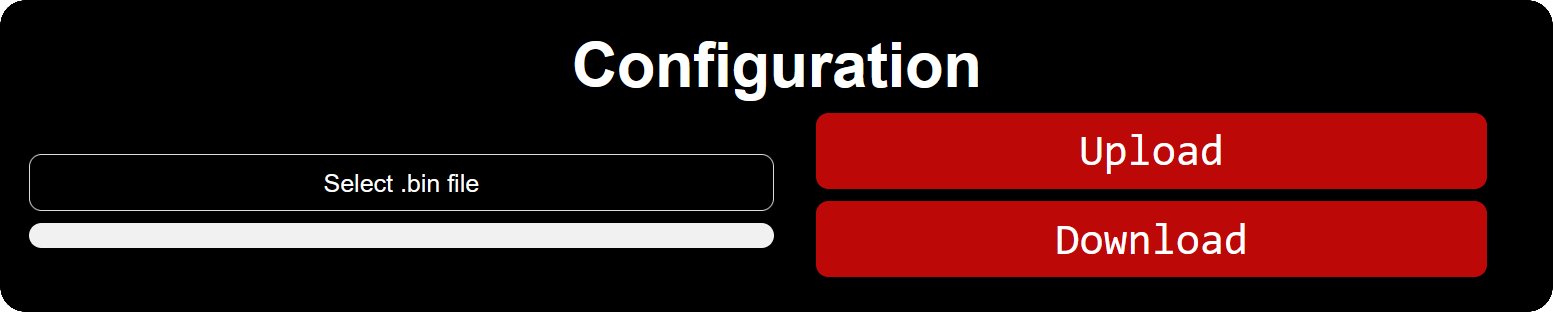
- - choose the file from your device
- - upload the selected configuration file
- - download the currently installed configuration file (for editing)
Refer to the Configuration editor chapter to create your configuration file.
After selecting the file and pressing Upload, the progress bar will start to fill up.
At the end, a message will appear on the page, indicating whether or not the operation was successful.
You must wait until you receive a message on the webpage, and you must press OK on it! The system will restart afterwards.
Boot logo
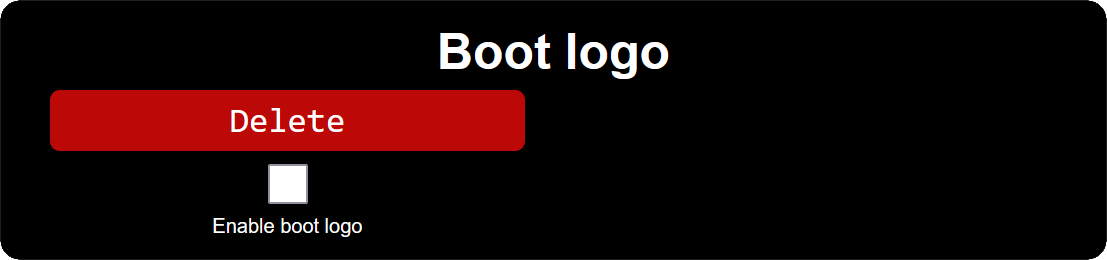
By default, the boot logo is disabled. Check the Enable boot logo checkbox to enable it.

- - choose a bitmap image from your device
- - top-left corner horizontal position on the screen (0-63)
- - top-left corner vertical position on the screen (0-47)
- - how many milliseconds the image stays on screen
- - upload the selected boot logo with its settings
Only images with .bmp format are accepted, and 1-bit monochrome is preferred.
Pressing the Set button will preview the boot logo on the screen.
Please avoid pressing the Set button while the a preview is on the screen!
If there is a boot logo uploaded, it can be removed by unchecking the Enable boot logo checkbox. This does not delete the image, and it can be enabled again.
To delete the boot logo, press Delete after disabling it.
It is possible to skip the boot logo before the duration runs out by using any button (Up/Down/Select).
Update

- - choose a software update file from your device
- - install the selected software update
After selecting the file and pressing Update, the progress bar will start to fill up.
At the end, a message will appear on the page, indicating whether or not the operation was successful.
You must wait until you receive a message on the webpage, and you must press OK on it! The system will restart afterwards.
Do not turn off the ignition, turn off Wi-Fi or exit the update page while the update is in progress!
More than likely, nothing bad would happen, just that the update wouldn't be installed. But it's recommended to be cautious.
If the update failed to install, you will see the regular main menu, without any other messages.
Please try to install the update again.
If the update installed successfully, the following message will appear:
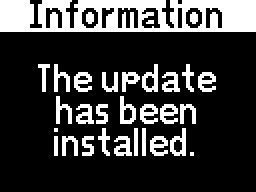
The configuration file, settings, boot logo and other files will not be deleted after the update.
Other files

- - choose a file from your device
- - send the selected file
After selecting the file and pressing Upload, the progress bar will start to fill up.
At the end, a message will appear on the page, indicating whether or not the operation was successful.
For now, the only accepted files are fault code description files and UDS module files. Check out the Fault code descriptions chapter for more details.