Automatic
Before setting the Wi-Fi network details, the following error will appear:
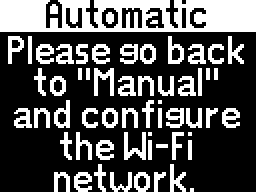
Go back and enter the menu and configure the Wi-Fi network as explained in the Using the update webpage chapter.
After configuring the Wi-Fi network, come back to the menu. The following message will appear:
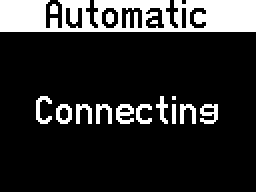
Please wait patiently and do not press any button.
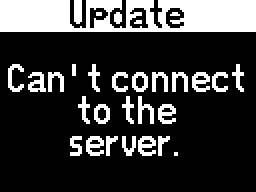
If CANFIS can't connect to the configured Wi-Fi network, the following error will appear:
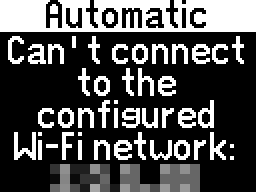
Please ensure you have started the Wi-Fi hotspot on your phone, and that you entered the correct SSID and password on the page.
It may be necessary to change the settings of the Wi-Fi hotspot to force it to use 2.4GHz mode. It is not possible to connect to a 5GHz hotspot.
Also, the Security option should be WPA/WPA2.
On IOS devices, the Integrity mode option should toggle between 2.4GHz and 5GHz mode.
After successfully connecting to the Wi-Fi hotspot, the following menu will appear:
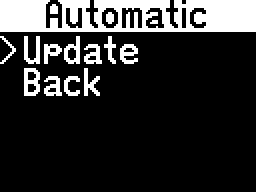
Updating
CANFIS will search for a new version:

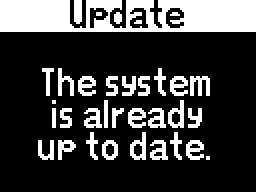
If the latest software version is already installed, the following message will appear:
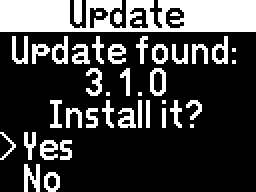
If a new software version is available, you will be asked to confirm installation:
If you choose to install the update, you will see a progress bar filling up:
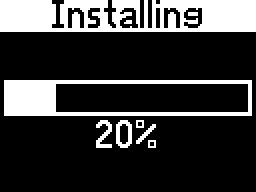
Do not turn off the ignition while the update is in progress!
More than likely, nothing bad would happen, just that the update wouldn't be installed. But it's recommended to be cautious.
Although still not recommended, you can disable your phone's hotspot or mobile data to cancel the update.
After the update finishes installing, the system will restart automatically.
If the update failed to install, you will see the regular main menu, without any other messages.
Please try to install the update again.
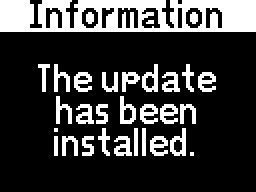
If the update installed successfully, the following message will appear:
The configuration file, settings, boot logo and other files will not be deleted after the update.